
Deep Diff Manual
Deep Diff is a professional file comparison program. It can compare whole directories or individual files. Differences are highlighted with different colors. Deep Diff can compare both text files and binary files. The files can be displayed side by side or as a composite of both files. Deep Diff runs on most versions of Windows.
License
DeepDiff is free to use and copy.
Comparing Files
When two files are compared the contents of the files are examined. Identical and different parts of the files are identified. All differences are highlighted. It is possible to change how the differences are highlighted using the Edit - Customize menu.
Deep Diff assumes that the first file is an older version of the second file. This means that all parts that only exist in the first file are identified as removed. All parts that only exist in the second file are identified as added. Parts that exist in both files, but in different positions, are identified as moved.
If the File - Compare Files menu item is activated, the order in which Deep Diff compares the files is determined by the order in which the files are selected. If the comparison is triggered by another program, the order is determined by the order of the arguments on the command line. The time stamp of the files are not used in any way.
Comparing Directories
When two directories are compared all files and folders within the directories are examined and identified as either added, removed, modified or identical.
Files are identified as identical if a file with the same relative path exist in both directories and the content of the files are equal. Files are identified as modified if a file with the same relative path exist in both directories but the content of the files are not equal. Deep Diff assumes that the first directory is an older version of the second directory. This means that all files that only exists in the first directory are identified as removed. All files that only exist in the second directory are identified as added. The logic is the same for files and folders.
If the File - Compare Directories menu item is activated, the order in which Deep Diff compares the directories is determined by the order in which the directories are selected. If the comparison is triggered by another program the order is determined by the order of the arguments on the command line.
Files and folders are displayed using different icons. The icon for removed files and folders has a minus (-) sign. The icon for added files and folders has a plus (+) sign. The icon for modified files and folders is marked with "M". The icons can also be highlighted using different colors. You can select which color to use by selecting the Edit - Customize menu item.
Edit - Properties
The "properties" dialog controls how files and directories will be compared.
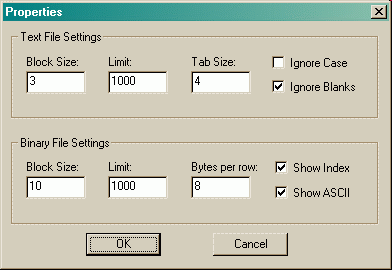
Text File Settings
Block Size
The block size defines the granularity of the comparision. The smaller the block size the more precise the display of the differences will be. Ie, what is displayed as a single big difference might be displayed as several smaller differences if the block size is reduced. Note that the comparison will also take longer if the block size is reduced.Limit
Deep Diff will sacrifice accuracy to make the comparison go faster if the files contains more lines than this limit. You can increase the limit to get a more accurate comparison of big files if you have a fast computer.Tab Size
The number of white space characters used to display a tabulator character.Ignore Case
If this box is checked the upper case version of the 26 latin characters (A-Z) will be considered equal to the lower case version (a-z) when two lines of text is compared. Note, that other characters will not be affected, ie åäöÅÄÖ, etc.Ignore Blanks
If this box is checked all blank characters (white space) in a line will be ignored, when the line is compared to another line. Completely blank lines will not be ignored.Binary File Settings
Block Size
The block size defines the granularity of the comparision. The smaller the block size the more precise the display of the differences will be. Ie, what is displayed as a single big difference might be displayed as several smaller differences if the block size is reduced. Note that the comparison will also take longer if the block size is reduced.Limit
Deep Diff will sacrifice accuracy to make the comparison go faster if the files are larger than this limit (bytes). You can increase the limit to get a more accurater comparison of big files if you have a fast computer.
Comparison of binary files can take a long time if they are similar but not identical. Files that are identical or very different tends to compare faster. To make the comparsion go faster, you can decrease the limit or increase the Block Size.
Byte per Row
How many bytes should be displayed on each line.Show Index
If this box is checked a hexadecimal index number will be displayed first on each line. The number indicates the offset to the first byte of the line.
If composite view mode is used the index will indicate the index in the real file rather than the index in the (imaginary) composite file. Since the first byte of a line may belong to any or both of the real files the index number may be a bit difficult to follow. If the first byte exist in both files the index in the first file will be displayed.
Show ASCII
If this box is checked the ASCII representation of each byte will be displayed at the end of each line. The Microsoft Windows version of 8-bit ASCII is used. Unprintable character are displayed as #.Edit - Customize
The "customize" dialog controls how files and folders will be displayed.

Font
The font used to display the content of files. It is recommended to use a monospace font, especially when displaying binary files.Size
The point size of the font used to display the content of files.Text Color
It is possible to use different text colors to highlight identical, removed, added and moved parts of a file.Background Color
It is possible to use different background colors to highlight identical, removed, added and moved parts of a file. It is recommended to use different background colors because it makes it easy to spot blank lines that have been added or removed from a file.Icon Color
It is possible to use different icon colors to highlight identical, modified, removed and added files and folders.Font Emphasis
It is possible to use different font emphasis to highlight removed, added and moved parts of a file.View Properties
View - Files
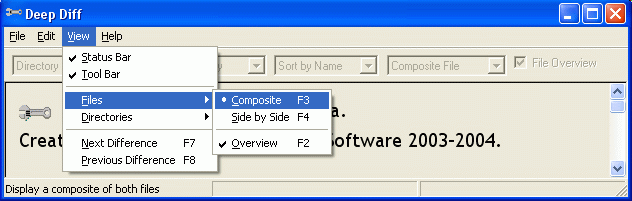
Composite / Side by Side
When two files are compared they can either be displayed side by side,
or a composite of both files can be displayed. If the file are
displayed side by side the first file is on the left and the second on
the right.Overview
If this box is checked a graphical overview of the differences between the two files will be displayed. This overview helps you see the big picture in one glimpse.View - Directories
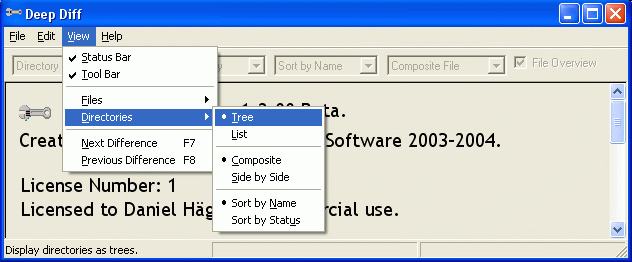
Tree / List
The view type determines if the directory should be displayed as a file
tree or a file list.Composite / Side by Side
When two directories are compared they can either be displayed side by
side,
or a composite of both directories can be displayed. If the directories
are displayed side by side the first directory is on the left and the
second on the right.
Sort
The files in the directory can be sorted by name or by status when a directory is displayed. The status of each files is determined when the directories are compared. The status is either identical (an identical copy of the file exists in both directories), different (a file with the same name exists in both the directories but they are not identical), unique (a file with that name does only exist in one directory).Integration with other programs
Deep Diff integrates well with versioning programs such as WinCVS. If you wish to launch Deep Diff from another program, simply pass the paths to the files or directories to compare on the commandline.
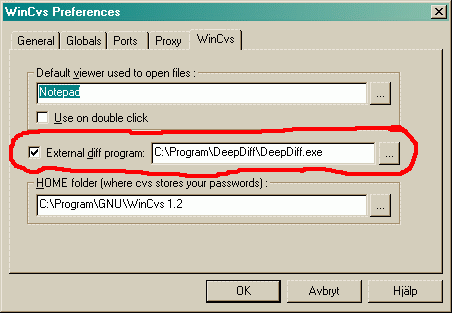
The picture shows how to setup WinCVS to use Deep Diff.
Keyboard Shortcuts
| Key
Combination |
Description |
| F1 |
Open the manual using Windows default browser. |
| F2 |
Toggle file overview on/off. |
| F3 |
Display a composite of both
files. |
| F4 |
Display the files side by side. |
| F5 |
Reload and recompare files and
directories. |
| F6 |
Move the focus to the next
window pane. |
| Shift + F6 |
Move the focus to the previous
window pane. |
| F7 |
Scroll to the next difference. |
| F8 |
Scroll to the previous
difference. |
| F9 |
Edit the first file using
Windows default editor. |
| F10 |
Edit the second file using
Windows default editor. |
| Arrow Down |
Scroll the focused window pane
down one line. |
| Arrow Left |
Scroll the focused window pane
left one character. |
| Arrow Right |
Scroll the focused window pane right one character. |
| Arrow Up |
Scroll the focused window pane up one line. |
| Ctrl + Arrow Left |
Scroll the focused window pane
one page to the left. |
| Ctrl + Arrow Right |
Scroll the focused window pane
one page to the right. |
| Page Up |
Scroll the focused window pane
one page up. |
| Page Down |
Scroll the focused window pane
one page down. |
| End |
Scroll the focused window pane
to the end of the file. |
| Home |
Scroll the focused window pane
to the start of the file. |
| Tab |
Move the focus to the next window pane. |
| Escape |
Close file(s). |
| Ctrl + D |
Open and compare two new directories. |
| Ctrl + O |
Open and compare two new files. |
| Ctrl + Q |
Quit the program. |