
Planning your trip in advance
There are several ways to add tracks and places to Lokalsinne before you start your trip.
Plan using Lokalsinne
The easiest way is to locate places you want to visit in the app. You can do it by zooming and panning. But you can also search for places by tapping the the magnifying glass. When you can see a place on the screen you can save it. Zoom in as much as you can to make it easier to hit and then "long press" (touch and hold) on the place you want to save. Lokalsinne will ask if you want to save it. Enter a name for the place and tap save.
If you know the coordinates for the place you don't have to locate it first. Simply long press anywhere on the map and change the coordinates before you save the place. Double check that the saved place is displayed correctly on the map since it is easy to enter the wrong coordinates by misstake.
Using tracks and places from other sources
You can get tracks and places from websites, from friends or create them using other applications. The two most popular file formats for exporting or sharing tracks and places are GPX and KML. Lokalsinne can read both formats. One file can contain multiple tracks or places.
When you install Lokalsinne it is registered as an app that can show GPX and KML files. This means that when you open a GPX or KML file, Lokalsinne will start and import the contents of the file. If you have more than one app that can read the file you are normally asked which app you want to use. If the file is opened in a different app without asking if you want to use Lokalsinne, it probably means that the other app is configured to be the standard app for that file type. To change that you need to go to the settings for that app.
Plan using Google Earth Pro
If you have a computer with a map program that can export GPX or KML files you can use it to plan your trip in advance.
This is how to do it using Google Earth Pro:Start by creating a folder for your trip. Put placemarks on all places you want to visit during the trip. Make sure the placemarks ends up in the right folder. Save the folder when you are done. Right-click the folder and select "Save place as". Change the file type to KML and save the file in your computer.
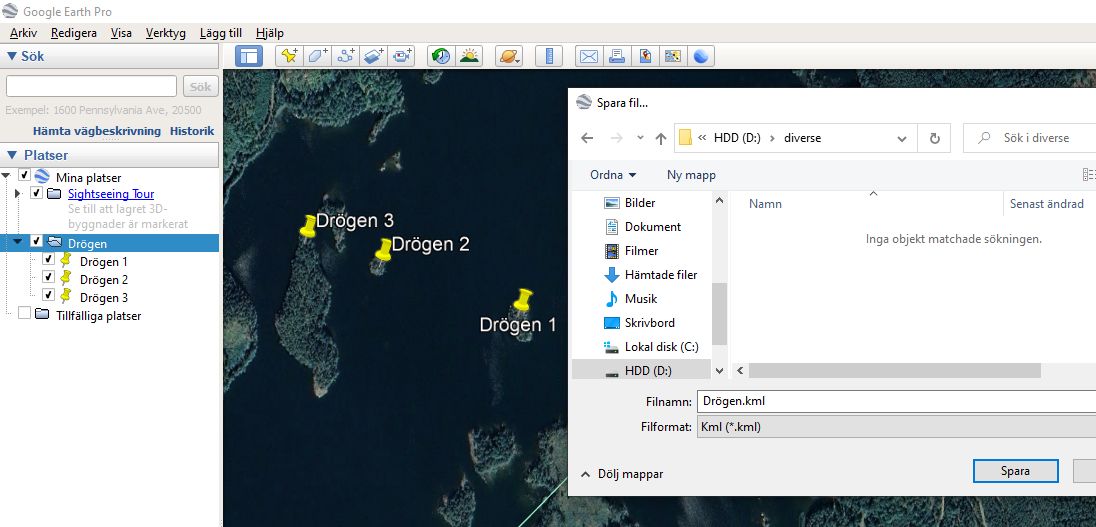
Transfer the KML-file to some account that you can access from the device where Lokalsinne is installed. You can for example use an email application like Outlook to send a message to yourself and attach the KML-file. But any application that can transmit files will do.
Start the corresponding app on the device, receive the message and open the attached KML-file. When you open the KML file you will be asked what app to use to display it. Select Lokalsinne. Lokalsinne will start and ask you if you want to save the places. Select Yes. You are now ready to go on your trip.